


Mar27
How to Safely Delete iTunes Backup Files and Free Up Storage Space on Your Device
Comentarios desactivados en How to Safely Delete iTunes Backup Files and Free Up Storage Space on Your Device
Welcome to this guide on how to safely delete iTunes(Click for details) backup files and free up storage space on your device. If you have been using iTunes for a while, you may have accumulated several backup files that are taking up valuable space on your computer or iOS device. These backups can be useful in case you need to restore your device to an earlier state, but they can also be a burden if you don’t need them anymore. In this article, we will go through the steps you need to take to safely delete old iTunes backups without losing any important data, and how to optimize your storage space.
iTunes is a popular software used by millions of people to manage their media files and devices. One of the features of iTunes is automatic backup creation that can take up valuable storage space on your device if you don’t manage them properly over time. In this article, we will guide you on how to safely delete iTunes backup files and free up storage space on your device.
Step 1: Check Your Backup Settings
Before deleting any backup files, you should check your current backup settings. Launch iTunes and go to Preferences > Devices. Here you will see a list of all the backups that have been created. You can also check the size of each backup file here.
In the backup settings, you can choose to encrypt your backups or not. If you do encrypt your backups, you will need to enter a password to access them. Keep in mind that if you forget this password, you won’t be able to recover your data from the backup file.
Step 2: Decide Which Backups to Delete
Once you have reviewed your backup settings, you can decide which backups to delete. We recommend that you keep at least one or two backups for each device you own. The most recent backup files are usually the largest and most relevant since they contain the newest data.
Step 3: Delete the Backups
Deleting backup files is straightforward. Select the backup file you want to delete, and then click the Delete Backup button. You can also remove multiple backups at once by holding down the Command key (Mac) or Control key (Windows) and selecting the backups you want to delete. Once you have selected the backups, click the Delete Backup button.
Step 4: Confirm Deletion
When you click the Delete Backup button, you will receive a warning message asking if you really want to delete the backup file. Press the «Delete» button again to confirm the deletion. After confirming the deletion, the backup file will be permanently removed from your computer.
Step 5: Repeat the Process
Repeat this process for all backups you want to delete. Be careful not to delete any backups that you might need later. You can always make new backups in the future, so it’s better to err on the side of caution when deleting backup files.
Conclusion
In summary, deleting iTunes backup files is an excellent way to free up storage space on your device. However, you should take care not to delete any essential backup files. By following these simple steps, you can safely delete unnecessary backup files and keep your device running smoothly.
Secure Your iTunes Library: How to Safely Delete Backup Files and Free Up Space
iTunes backup files can take up a considerable amount of space on your computer, resulting in slower performance and limited storage capacity. To ensure that your iTunes library runs smoothly, it is important to periodically delete unused backup files that are no longer needed. However, deleting backup files can be risky if not done properly. In this guide, we will discuss how you can safely delete backup files in iTunes to free up space without compromising the security of your data. By following these simple steps, you can keep your iTunes library organized and secure while making the most of your available storage space.
iTunes is a popular multimedia player and library organizer that millions of people use to store their music, videos and other digital content. One of the features of iTunes is the ability to create backups of your iOS devices such as iPhones, iPads and iPods. These backups can take up a significant amount of space on your computer’s hard drive, so it’s important to know how to safely delete them when you no longer need them. In this article, we’ll show you how to do just that.
Why Delete Backup Files?
First, let’s talk about why you would want to delete backup files in the first place. As mentioned before, these files can take up a lot of space on your computer’s hard drive. If you have multiple iOS devices or if you frequently create new backups, these files can quickly accumulate and leave you with less storage space. Deleting old backup files that you no longer need can help free up space and potentially speed up your computer.
How to Safely Delete Backup Files
Now that we’ve covered why you might want to delete backup files, let’s talk about how to actually do it. Follow these steps to safely delete backup files in iTunes:
1. Open iTunes on your computer and click on the «iTunes» menu in the top left corner of the screen.
2. Select «Preferences» from the drop-down menu.
3. Click on the «Devices» tab at the top of the Preferences window.
4. You should see a list of all the iOS backup files that are currently stored on your computer. To delete a backup file, simply highlight it and click the «Delete Backup» button.
5. A confirmation window will appear asking if you’re sure you want to delete the selected backup file. Click «Delete» to confirm.
6. Repeat steps 4-5 for any additional backup files you want to delete.
Note: Be very careful when deleting backup files as you may accidentally delete a backup that you still need. Before deleting any files, make sure you double-check to ensure it’s not a file you need.
Preventing Future Backup Files
Now that you know how to safely delete backup files, you might be wondering how to prevent them from being created in the first place. iTunes automatically creates backups of your iOS devices whenever you sync them with your computer. If you want to prevent these backups from being created, you will need to disable the backup feature altogether.
To do this, follow these steps:
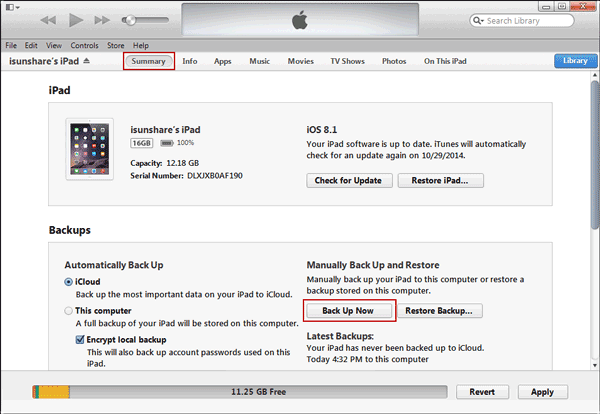
1. Connect your iOS device to your computer and open iTunes.
2. Click on the device icon in the upper-left corner of the iTunes window.
3. Under the «Summary» tab in the main window, scroll down to the «Backups» section.
4. Select «This computer» under the «Automatically Back Up» heading.
5. Uncheck the box next to «Encrypt iPhone backup» if it’s checked.
6. Click the «Apply» button in the lower-right corner of the window to save your changes.
By following these steps, you can disable automatic backups for your iOS devices and prevent them from taking up unnecessary space on your computer’s hard drive.
Conclusion
In conclusion, knowing how to safely delete backup files in iTunes is an important skill for anyone who uses the software to manage their digital content. By freeing up space on your computer’s hard drive, you can improve performance and ensure that you have enough room for everything you need. Just remember to be careful when deleting files and always double-check to make sure you’re not deleting anything important.
Popular Posts
Ago
16


Recent Comments